
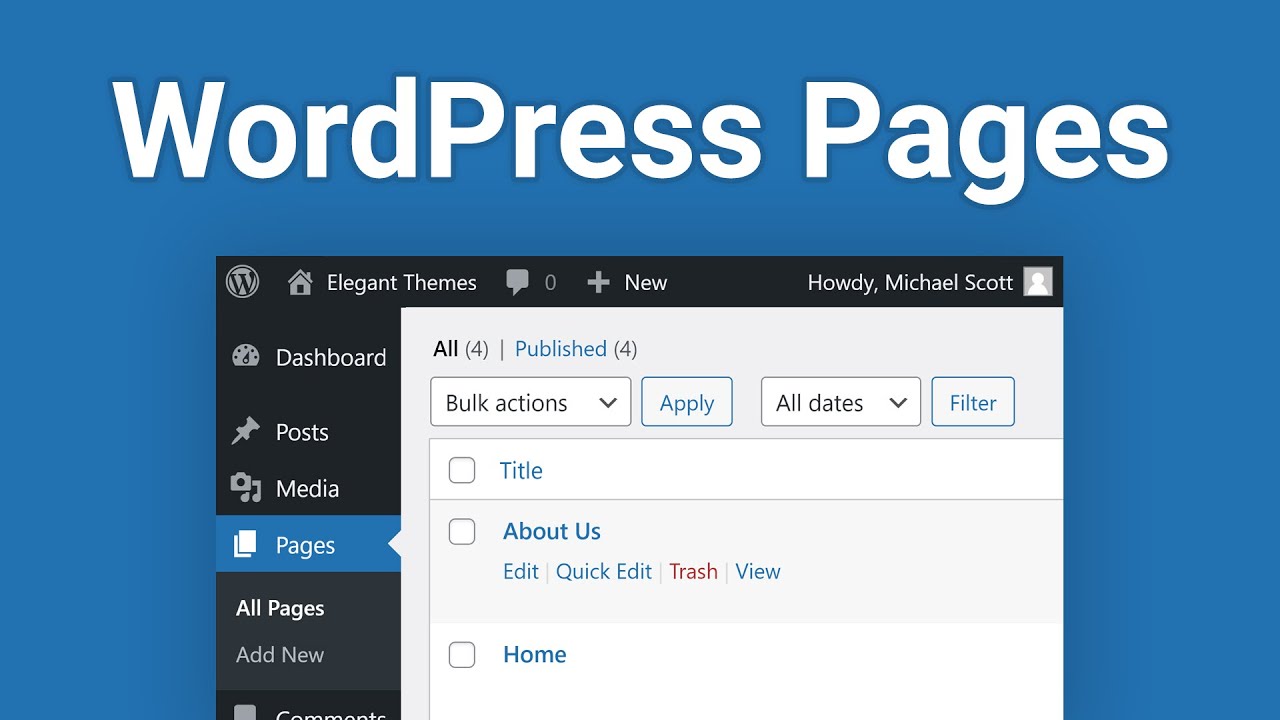

Generally, in current internet trends, websites are designed using WordPress tools. The pages in WordPress live outside the normal website chronology and are often used to present timeless information about yourself or your site — information that is always applicable. You can also have the flexibility to use Pages to organize and manage any content.
To add a new Page in WordPress, you move your cursor over the Pages menu option in the left-hand navigation menu and, in the fly-out menu, click the Add New link. Alternatively, click the Pages menu option, then click the Add New link below, or the Add New button at the top of the page. You will be presented with a page similar to the image below.
To get this screen, you need to follow several steps to add a new page in WordPress. In this article, we briefly describe each stage of adding a page in WordPress.
Once you’re inside your WordPress dashboard, look for the “Pages” tab on the top left sidebar menu. After that, click the Pages button. If there are more than 20 pages, use the search pages’ box in the right-hand corner or the next page function also in the top right-hand corner to find those pages.
After clicking the page button on the dashboard. To add a new page under the page button, the dashboard is a vertical list of words running down the left side of the page. You will need a parent page on which to list your subpage. On the “Pages” screen, select “Add New” to the right of the word “Pages.
With this picture, we can clearly see the initial view you will see when you first go to the page. When the page form appears, enter a title and some content you want to post on your page.
After filling all the fields on the page, you need to publish it. Once you have finished, click on Publish, and it will be part of your site. Then click the “Publish” button on the right to post it to your site. You can also click “Save Draft” or “Preview” if you are not ready to post it to the site.
At last, you need to click on the drop-down menu under the word “Parent.” This will list all the pages that you have created. Choose the page that you want your subpage to be listed under. Then click the blue “Update” button.
This article gives you a way to add a page to your WordPress site easily without searching for more information on the internet. To get other related information about WordPress, read other articles posted on our site.